
Table of Contents
Find Address for UK
Find Address For UK lets Zoho CRM users search a verified UK address by postcode or street and fill a record’s address fields in one click. It is built by W3S Cloud Technology and uses Royal Mail PAF data through Postcoder.
Key features
- Address autocomplete and postcode lookup backed by Royal Mail PAF data.
- Review and edit Street, Post Town, County, Postcode and Country before saving.
- Two address blocks for Contacts (Mailing, Other) and Accounts (Billing, Shipping), with a copy button between them.
- Admin field mapping to standard or custom Zoho CRM fields, per module.
- Settings stored in Zoho CRM Organization Variables.
- Blocked outside Zoho CRM, so Postcoder credits can’t be used by opening the widget URL directly.
Supported modules
|
Module |
Address blocks |
Default fields filled |
|---|---|---|
|
Leads |
Address |
Street, Zip_Code, City, State, Country |
|
Contacts |
Mailing, Other |
Mailing_* and Other_* (Street, Zip, City, State, Country) |
|
Accounts |
Billing, Shipping |
Billing_* and Shipping_* (Street, Code, City, State, Country) |
Requirements
- A Zoho CRM account with permission to install extensions.
- A Postcoder account and API key, for example
XXW45-12045-10345-1230X.
Installation
-
Install the extension from the Zoho Marketplace, then open any Lead, Contact or Account to use it.
- In Zoho CRM, go to Setup → Marketplace → All and search for Find Address For UK.
- Click Install, accept the terms, and choose which users or profiles get access.
- Open a Lead, Contact or Account and click Edit (or create a new record).
- Click the Find Address button to open the widget popup.
On first open the widget shows Postcoder API Key Required. Click Configure Settings to continue to the next step.
Configuration
-
The only required setting is a Postcoder API key; it is saved once per Zoho organization and shared by all users.
- Sign up or log in at postcoder.com and copy your API key.
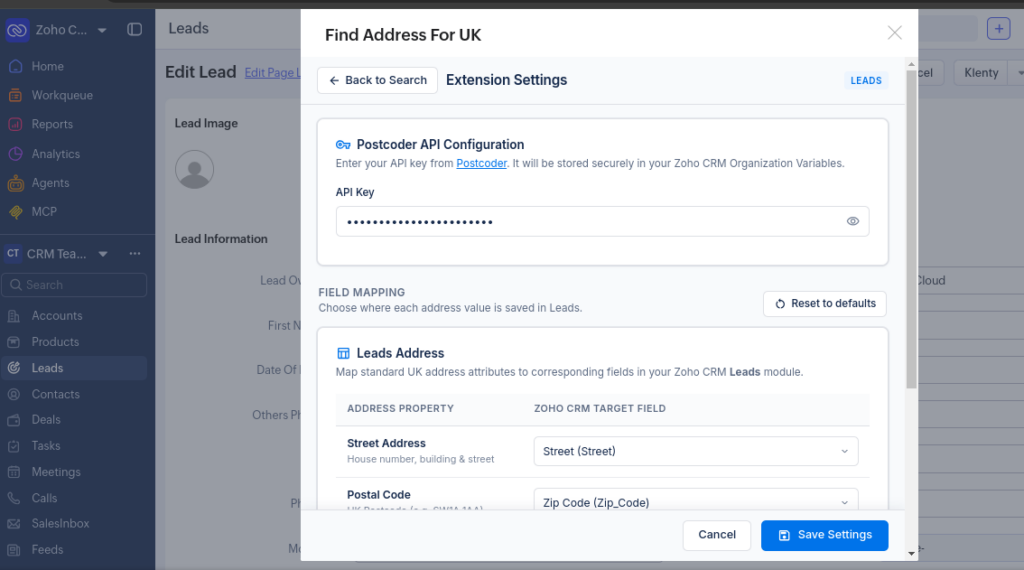
- In the widget, click the Settings (gear) icon to open Extension Settings.
- Paste the key into API Key. Use the eye icon to show or hide it.
- Click Save Settings. A confirmation shows: “<Module> field mappings and Postcoder API Key saved to Zoho CRM!”
- Click Back to Search to return to the address search.
Settings are stored in these Organization Variables:
Variable
Holds
findaddressforengland__Postcoder_API_KeyPostcoder API key
findaddressforengland__Leads_ModuleLeads field mapping
findaddressforengland__Contacts_ModuleContacts field mapping (Mailing, Other)
findaddressforengland__Accounts_ModuleAccounts field mapping (Billing, Shipping)
The widget also reads older
findaddressforuk__*andfindaddressforau__*variables, so settings from earlier versions carry over.
Field mapping
Mapping works out of the box with Zoho’s standard address fields; change it only if you use custom fields. Mapping is set per module, from the Settings page of the module you opened the widget in.
- Open the widget from the module you want to configure (Leads, Contacts or Accounts).
- Go to Settings → Field Mapping.
- For each Address Property, pick a Zoho CRM Target Field from the dropdown, shown as Field Label (API name).
- Choose –none– to leave an address part unfilled.
- Click Save Settings.
Address properties:
Address property
What it holds
Street Address
House number, building and street
Postal Code
UK postcode, e.g. SW1A 1AA
City / Post Town
Postal town or city
County / State
Administrative county or region
Country
Defaults to United Kingdom
Contacts and Accounts show two mapping tables, one per address block. If a saved field no longer exists in the layout, it is shown as “(not found in layout)” and the widget picks the closest matching field. **Reset to defaults** restores all of a module’s mappings to the standard fields; click Save Settings to apply it.
How to Install
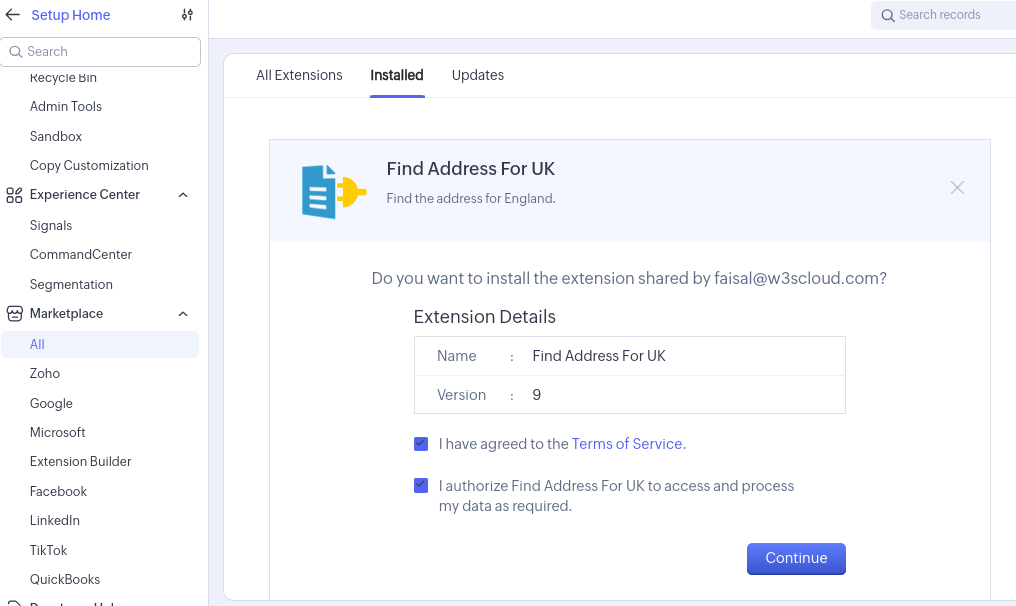
Open Zoho Marketplace, search for “Find Address for AU” and click the “Install” button.
Agree to the terms and conditions, then click the “Continue” button.
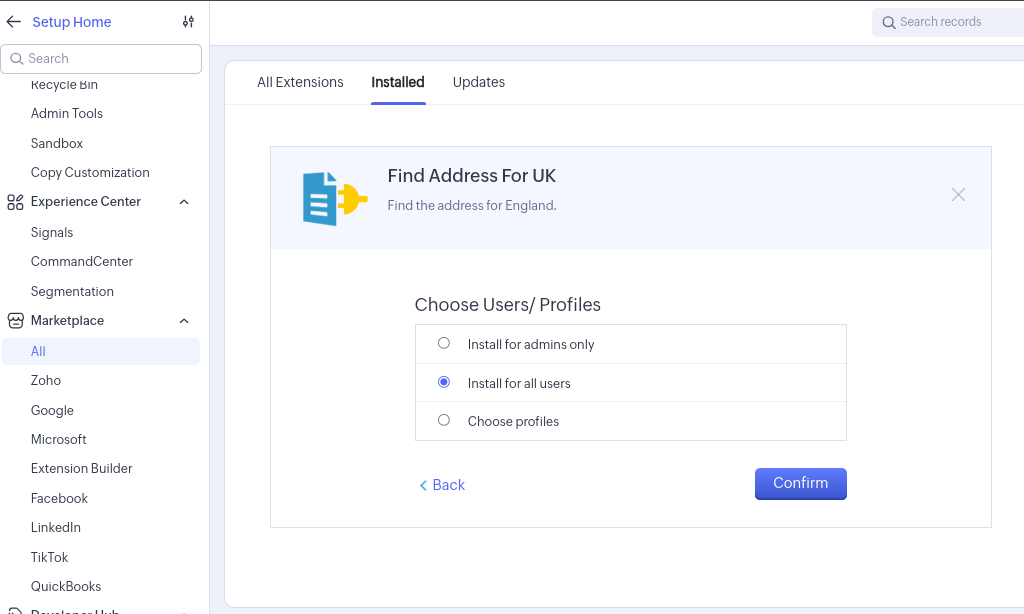
Choose who can use the extension (admins only, all users, or selected profiles), then click the “Confirm” button.
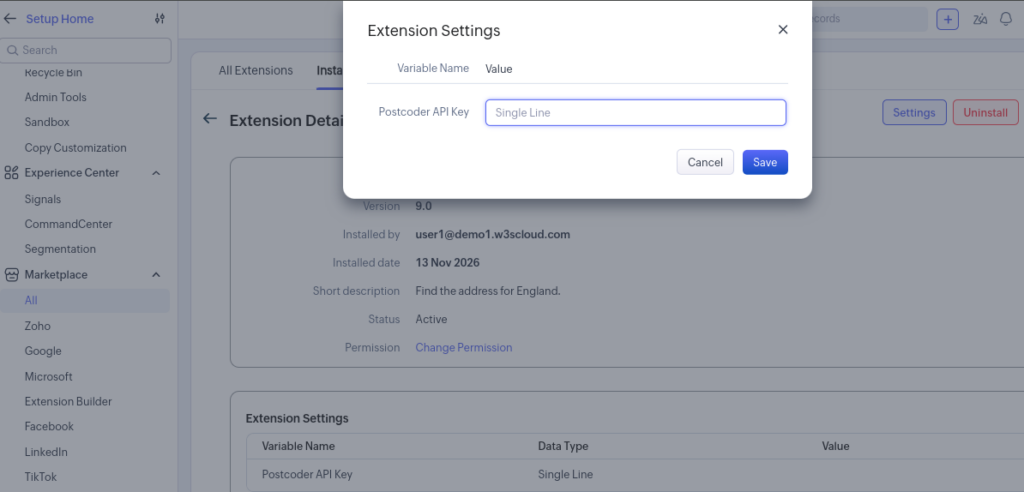
After installation, the setup page opens.
- paste the API key from the Keys page of your Postcoder Portal and click the “Save” button. The key is checked with Postcoder before it is saved.
How to use
Type at least 2 characters of a postcode or street, pick a suggestion, check the fields, then click Populate to <Module>.
Leads (single address)
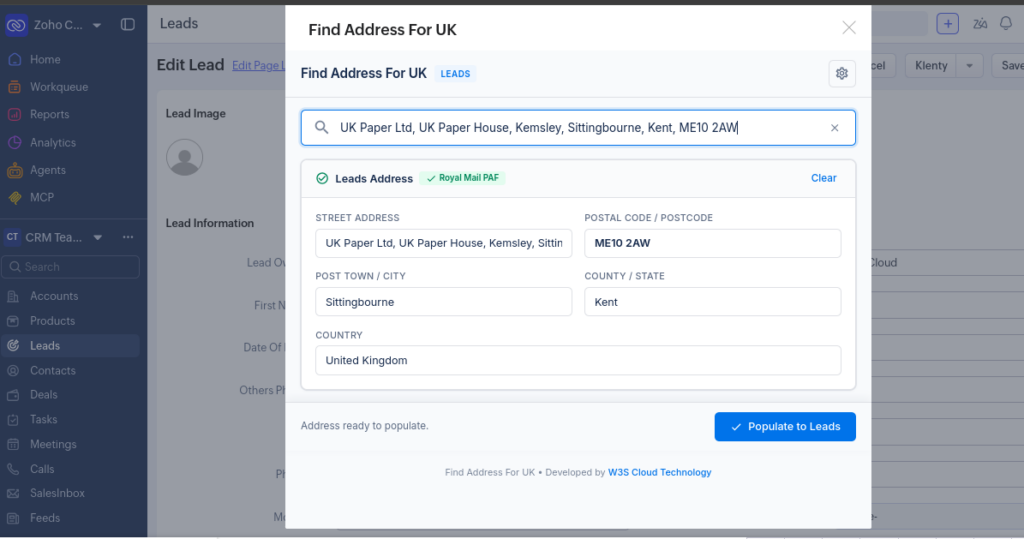
- Open a Lead in edit mode and click Find Address.
- In the search box, type a UK postcode (e.g. SW1A 1AA) or a street.
- Pick an address from Royal Mail PAF Address Suggestions.
- Review Street Address, Postal Code, Post Town, County and Country. Edit any field if needed.
- Click Populate to Leads. The record form fills in and the popup closes.
Contacts and Accounts (two addresses)
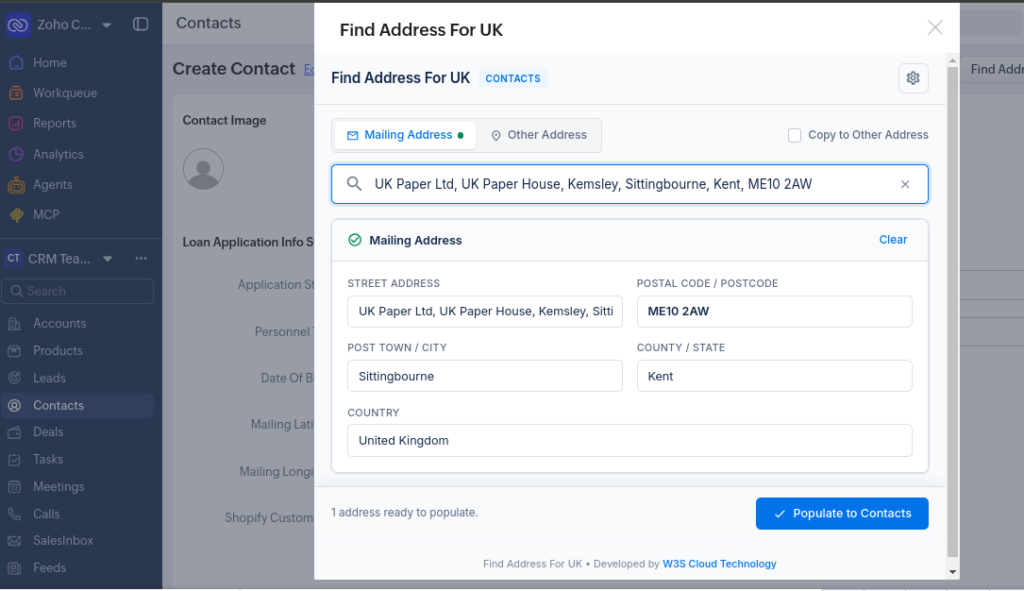
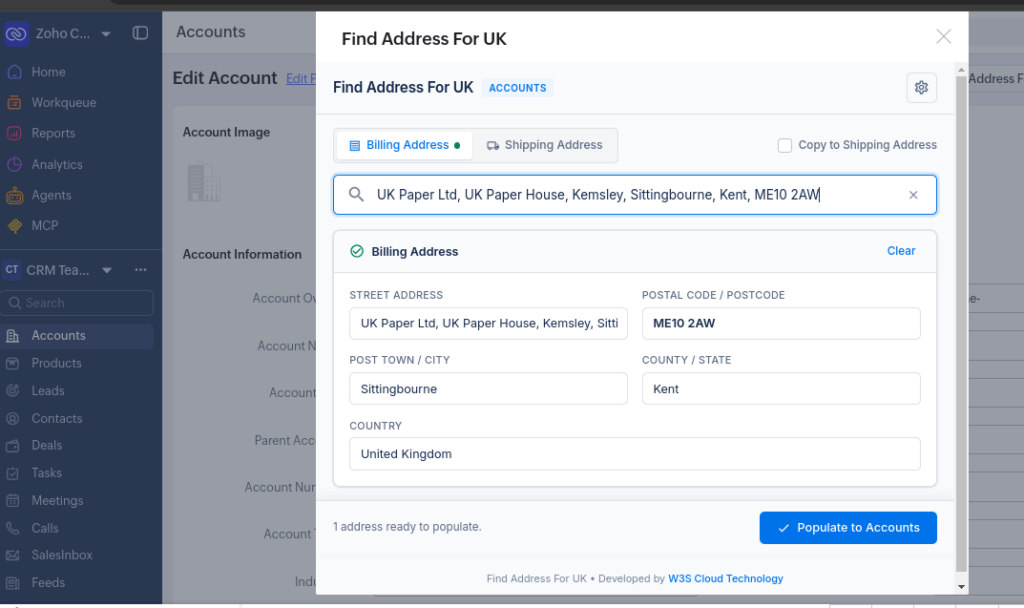
- Open the record in edit mode and click Find Address.
- Pick the tab: Mailing / Other for Contacts, Billing / Shipping for Accounts.
- Search and select an address in the first tab.
- Use Copy to <second block> to reuse it, or search a different address in the second tab.
- Click Populate to <Module>. Only blocks that hold an address are written.
Click Clear on a block to empty it and search again. Save the CRM record as usual afterwards; the widget fills the form but does not save it.
💬 Need Help?
If you encounter any issues during installation or have questions about the integration, our support team is here to help.
Email Support: