
Table of Contents
Find Address for AU
Find Address for AU is a Zoho CRM extension that searches Australian addresses through Addressfinder and fills the address fields on Leads, Contacts and Accounts in one click.
- Frontend: React widget (React Bootstrap, MUI icons)
- Address data: Addressfinder AU autocomplete widget
- Zoho: Zoho CRM Embedded App SDK, org variables for settings
You open the widget from a record, start typing an address and pick a match. The extension shows the street, city, state, postcode and country, then writes them into the fields you mapped for that module. The Addressfinder API key and the field mapping are stored once per organization, so every user gets the same setup.
Prerequisites
- Zoho CRM account – an edition that supports Marketplace extensions. An Administrator is needed to save the API key and field mapping. Sign up for Zoho CRM.
- Addressfinder account – an AU project with an active API key. Sign up for Addressfinder.
- Registered domain in Addressfinder – the widget calls Addressfinder from the browser, so its domain must be listed under Domains in your Addressfinder portal.
About this version
- Works with the Leads, Contacts and Accounts modules.
- Opens as a popup from the record’s create and edit pages, so the address fills in before you save the record.
- Responsive layout that fits the Zoho CRM popup on any screen size.
Features
- Australian address search – live autocomplete powered by Addressfinder, limited to AU addresses.
- One-click fill – writes Street, City, State, Postcode and Country into the open record.
- Address preview – shows the selected address before anything is written, with a Clear option to search again.
- Configurable field mapping – choose which Zoho field receives each address part, separately for each module.
- API key check – the key is tested with Addressfinder before it is saved, and the widget tells you if a saved key stops working.
- Admin-only settings – only Administrator profiles can change the API key and mapping; other users just search and fill.
- Setup after installation – a setup page guides the admin through the API key and field mapping.
Scopes
- Frontend (Zoho):
- Org variables – read and update the saved API key and field mapping (
getOrgVariable,crm.set). - Fields metadata – read each module’s fields for the mapping dropdowns (
META.getFields). - Users – read the current user’s profile to allow settings changes for Administrators only (
CONFIG.getCurrentUser). - Record UI – fill the open record’s fields and close the popup (
UI.Record.populate,UI.Popup.close).
- Org variables – read and update the saved API key and field mapping (
- Address data (Addressfinder):
- Browser requests with the Addressfinder API key only. No secret is stored in Zoho.
- The domain the widget runs on must be registered in the Addressfinder portal.
How to Install
Open Zoho Marketplace, search for “Find Address for AU” and click the “Install” button.
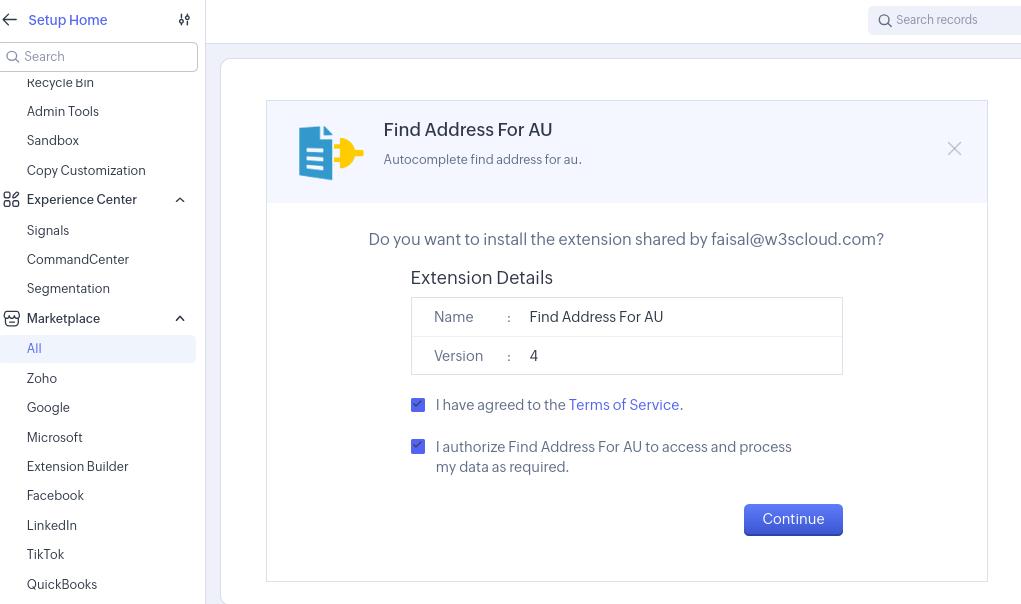
Agree to the terms and conditions, then click the “Continue” button.
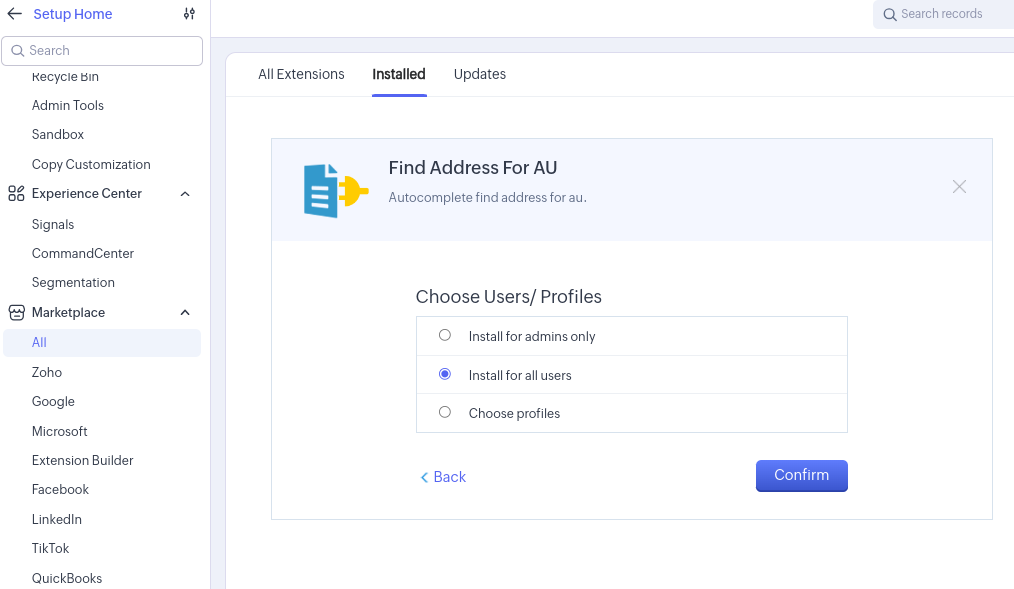
Choose who can use the extension (admins only, all users, or selected profiles), then click the “Confirm” button.
After installation, the setup page opens.
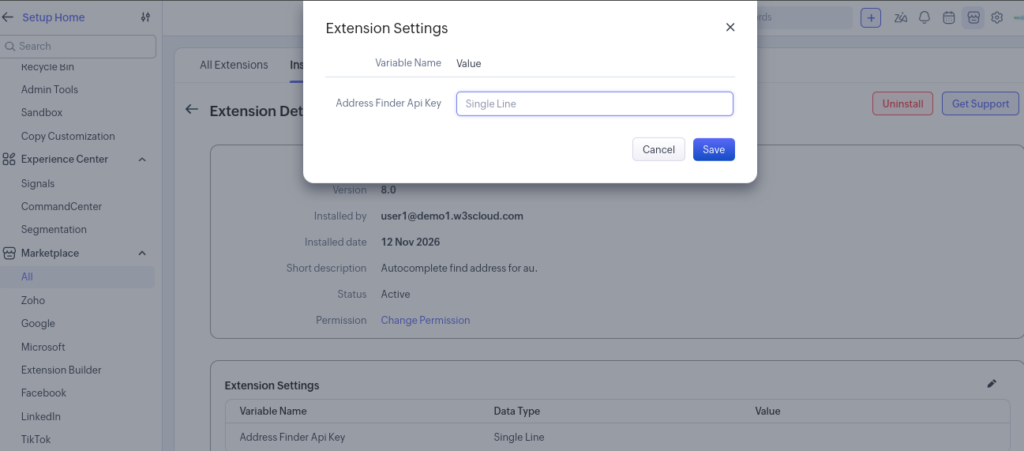
- paste the API key from the Keys page of your Addressfinder portal and click the “Save” button. The key is checked with Addressfinder before it is saved.
-
In your Addressfinder portal, open Domains and add the extension’s widget domain. Without it, Addressfinder rejects every search with “Domain not registered with Addressfinder”.
How to Use
Open a Lead, Contact or Account in create or edit mode and click the “Find Address for AU” button. The popup opens with a search box.
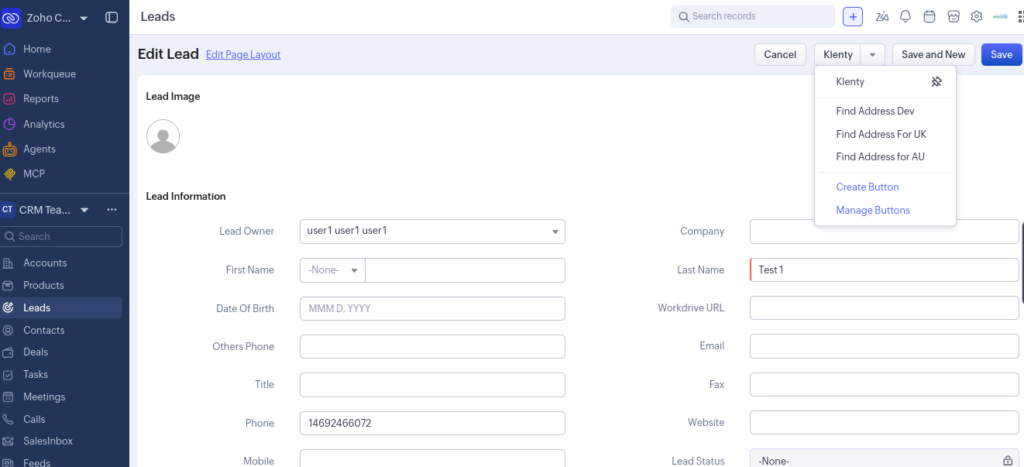
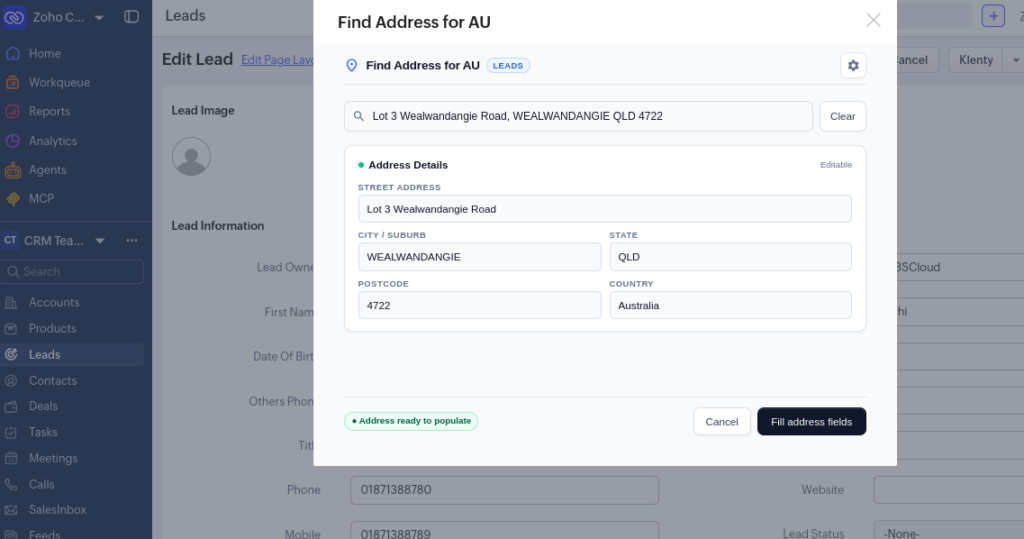
Start typing an Australian address and pick a match from the list. The popup shows the selected address:
- Street
- City
- State
- Postcode
- Country (always Australia)
On Leads Module
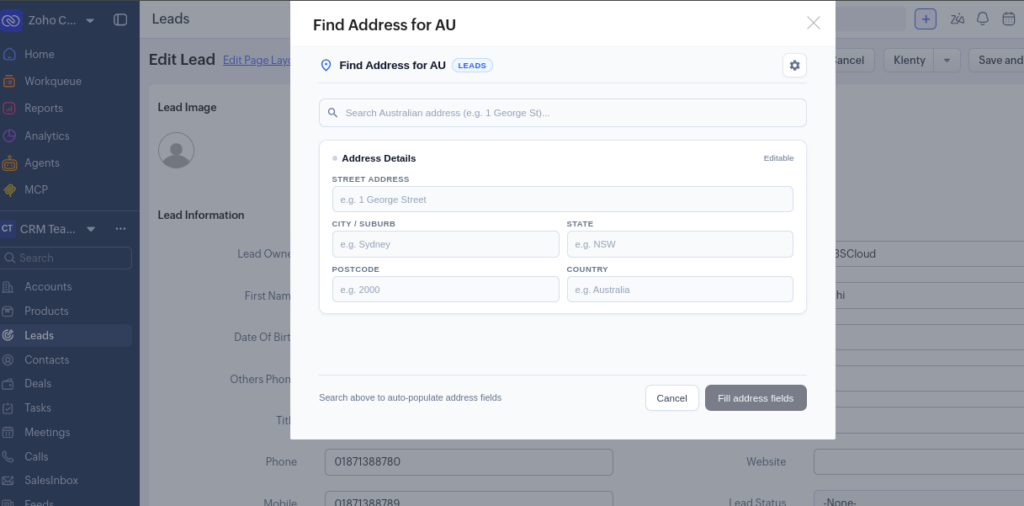
On Accounts Module
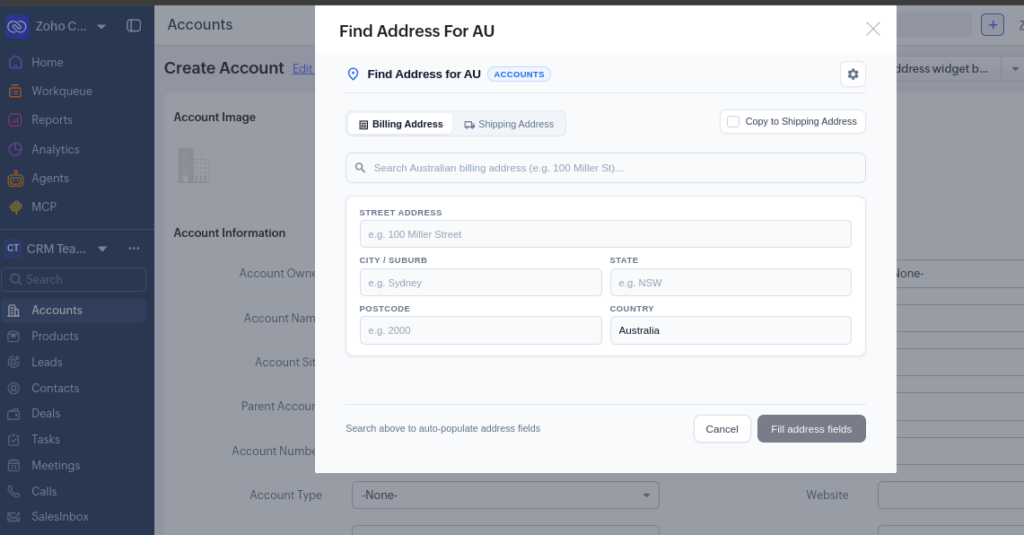
On Contacts Module
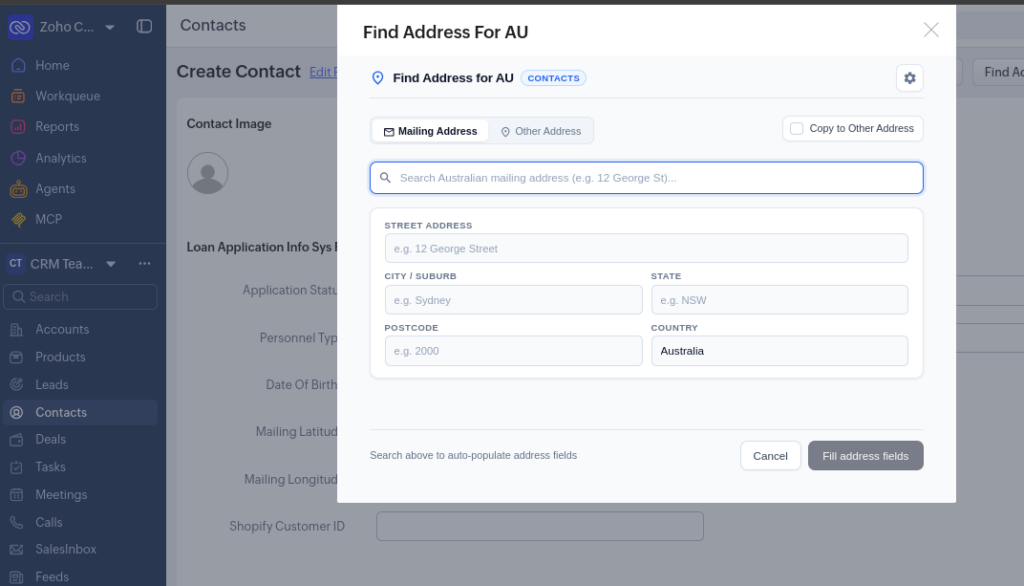
By clicking the settings icon, you can view the mapping fields. You can also change the API key if needed.
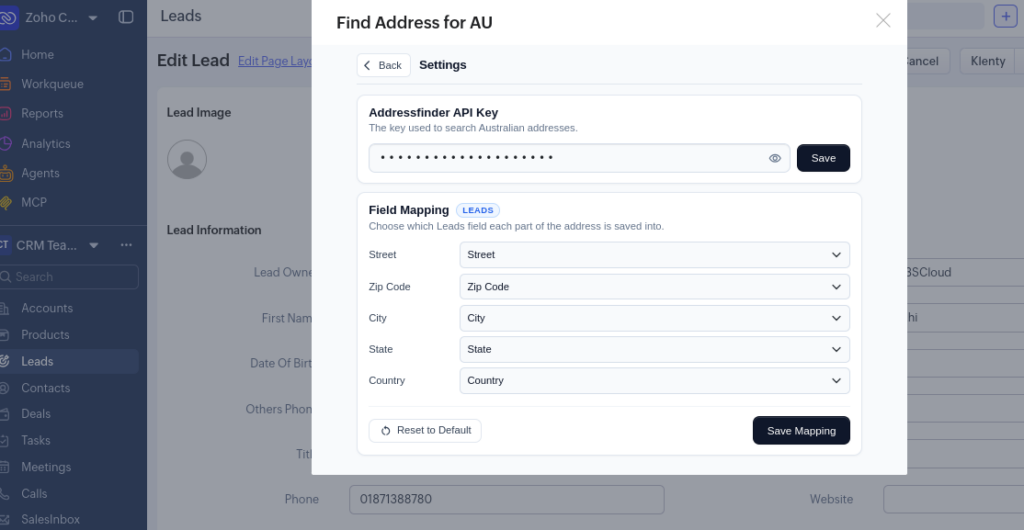
Click the “Fill address fields” button. The values are written into the mapped fields and the popup closes. Click the “Save” button on the record to keep them. To search again instead, click the “Clear” button.
If the API key or field mapping is missing, an Administrator can set it by clicking the “Settings” icon next to the search box.
💬 Need Help?
If you encounter any issues during installation or have questions about the integration, our support team is here to help.
Email Support: