Table of Contents
Financial Insight for Zoho CRM with Zoho Invoice
Financial Insight for Zoho CRM with Zoho Invoice puts a deal’s invoicing picture directly on the Zoho CRM Deals detail page. Sales and finance teams see what has been invoiced, paid and is still outstanding for a deal without leaving CRM or opening Zoho Invoice.
The widget reads invoices from Zoho Invoice, shows the ones linked to the open deal, and lets users link new invoices to that deal in a few clicks.
Key features
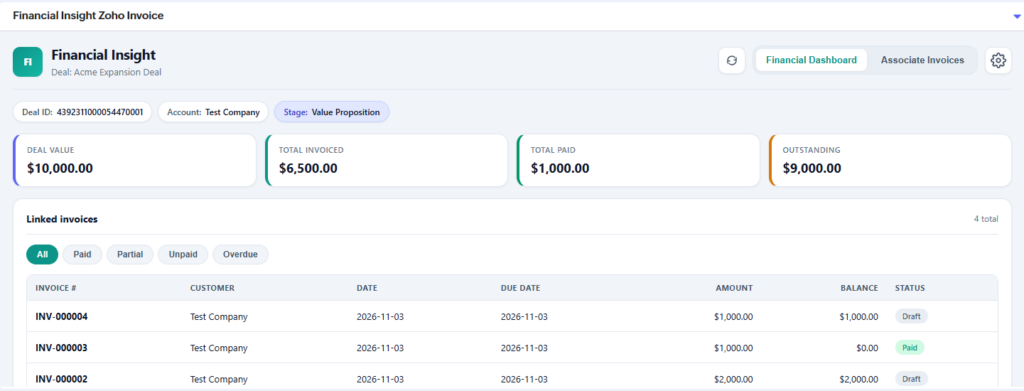
- Financial Dashboard – four summary cards (Deal Value, Total Invoiced, Total Paid, Outstanding) and a table of every invoice linked to the deal.
- Status filters – narrow the invoice table to All, Paid, Partial, Unpaid or Overdue.
- Associate Invoices – search unlinked invoices by invoice number or customer name, select several, and link them to the deal in one step.
- Contact or Account matching – choose whether invoices are matched to a deal by its Contact or its Account.
- Automatic region detection – the widget finds your Zoho data centre (US, EU, IN, AU, CA, JP, CN, SA) on its own.
- One-click refresh – reload the latest invoice data without reloading the CRM page.
- No extra server – all data stays between Zoho CRM and Zoho Invoice through a secure Zoho connection.
Prerequisites
- A Zoho CRM edition that supports widgets and connections.
- An active Zoho Invoice organization.
- The Zoho CRM integration turned on in Zoho Invoice, so invoices can carry a CRM deal reference.
- Deals that have a Contact or an Account (whichever you will match by).
How to Install
check the two options and click Install now button.
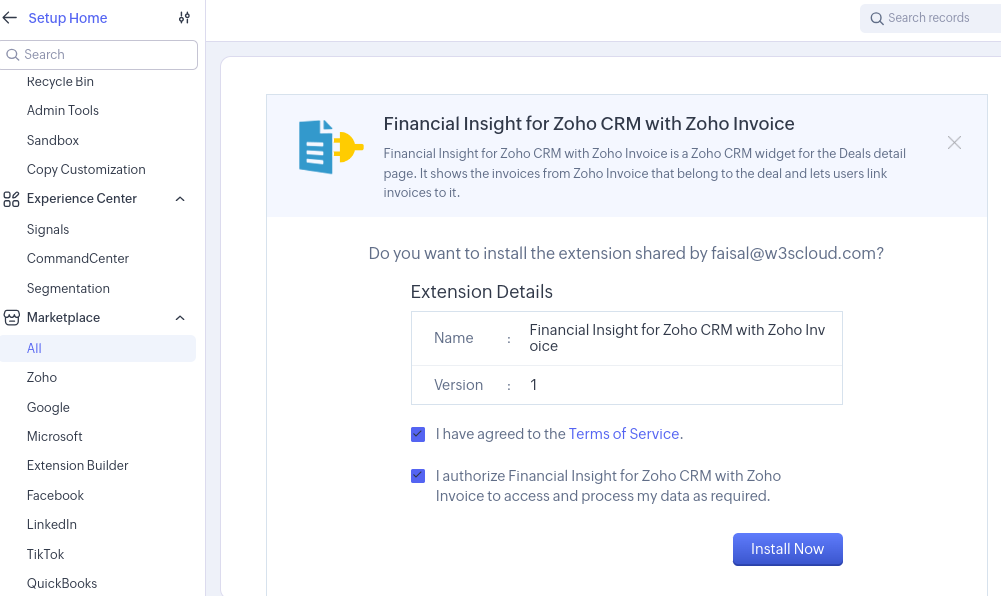
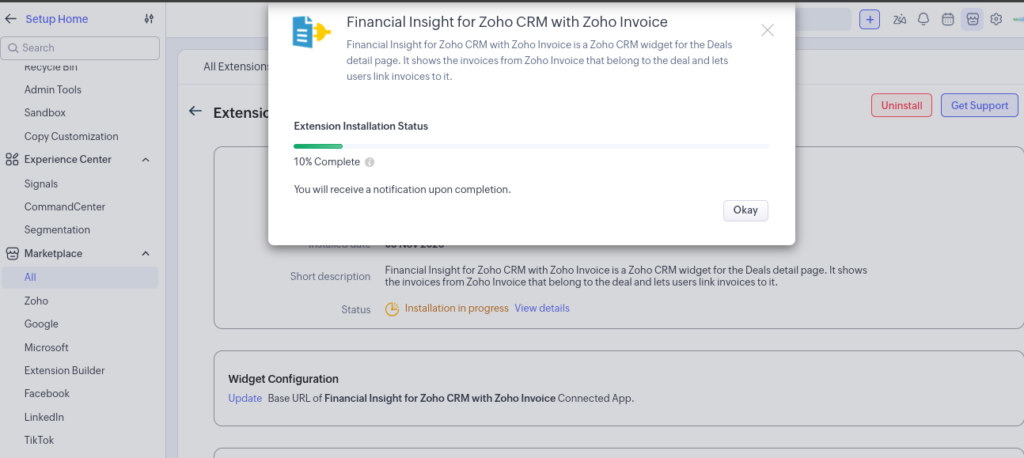
After installation, the extension is ready to use. Go to the Deals module and open any Deal record.Scroll to the Financial Insight section on the Deal page.
On Related List:
open any Deal record and scroll to the Financial Insight section to view the deal’s financial dashboard and linked invoices.
On Button:
open any Deal record and click the Financial Insight button to view the deal’s financial dashboard and linked invoices.
On Web Tab:
open any Deal record and select Financial Insight from the right-hand panel to view the deal’s financial dashboard and linked invoices.
Connecting Zoho Invoice
The widget talks to Zoho Invoice through a CRM connection named exactly zoho_invoice_connection. Create it once per CRM organization, then set the widget options once per user.
Step 1 – Create the connection
- In Zoho CRM, go to Setup → Developer Hub → Connections and click Create Connection.
- Under Zoho services, choose Zoho Invoice.
- Enter the connection name and set the link name to
zoho_invoice_connection(exact spelling). - Select these scopes:
ZohoInvoice.invoices.ALLZohoInvoice.settings.READ
- Click Create and Connect, then Connect and accept the authorization prompt.
The widget also needs the ZohoCRM.modules.deals.READ scope to read the open deal.
Step 2 – Find your organization ID
In Zoho Invoice, open Settings → Organization Profile and copy the Organization ID (for example, 110001026205).
Step 3 – Configure the widget
- Open any Deal and click the gear icon in the top-right corner of the widget.
- Paste the ID into Zoho Invoice organization ID.
- Under Match unlinked invoices by, choose Contact or Account.
- Click Save settings.
Settings are saved in the browser, so each user sets them once per browser.
Using the Financial Insight widget
The widget has two tabs, Financial Dashboard and Associate Invoices, plus a refresh button and the settings gear. A strip under the header shows the Deal ID and the Contact or Account being matched.
Financial Dashboard
The dashboard opens by default and summarises every invoice linked to the deal.
Card | How it is calculated |
|---|---|
Deal Value | The deal’s Amount field in Zoho CRM. |
Total Invoiced | Sum of the totals of all linked invoices. |
Total Paid | Total Invoiced minus the remaining balance on those invoices. |
Outstanding | Deal Value minus Total Paid – what is still to be collected on the deal. |
Below the cards, the Linked invoices table lists Invoice #, Customer, Date, Due Date, Amount, Balance and Status, six rows per page. Use the filter pills to narrow it:
Filter | Shows invoices with status |
|---|---|
all | Every linked invoice |
paid | Paid |
partial | Partially paid |
unpaid | Draft or Sent |
overdue | Overdue |
Associate Invoices
Use this tab to link existing Zoho Invoice invoices to the deal.
- Open the Associate Invoices tab. It lists unlinked invoices whose customer name matches the deal’s Contact or Account.
- Type in the search box to filter by invoice number or customer name.
- Click invoices to select them; the footer shows how many are selected. Click Clear to start over.
- Click Link to Deal.
The widget writes the deal reference onto each invoice in Zoho Invoice and refreshes. Linked invoices then appear on the dashboard and in the deal’s records in Zoho Invoice. Click the refresh icon to reload the deal and invoices after changes made elsewhere, such as a payment recorded in Zoho Invoice.
Video
How to use
- Set it up (first time only). Click the ⚙️ Settings icon in the widget and choose your invoice source:
- Zoho Books: enter your Zoho Books organization ID.
- Zoho CRM: no extra details needed.
- Match unlinked invoices by: either the Contact on Deal or the Account on Deal.
- Click Save settings.
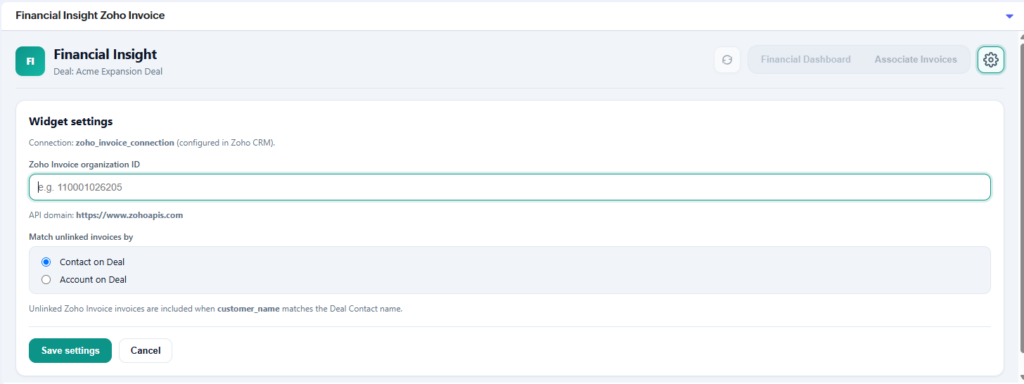
Settings are stored in your browser, so each user or device has to set them once.
2. Link invoices to the deal (Associate Invoices tab)
- Open the Associate Invoices tab. It lists invoices for the deal’s contact or account that aren’t linked to any deal yet.
- Search by invoice number or customer name.
- Click rows to select them. Selected rows are highlighted.
- Click Link to Deal. Use Clear to deselect everything.
- The widget switches back to the dashboard and reloads.
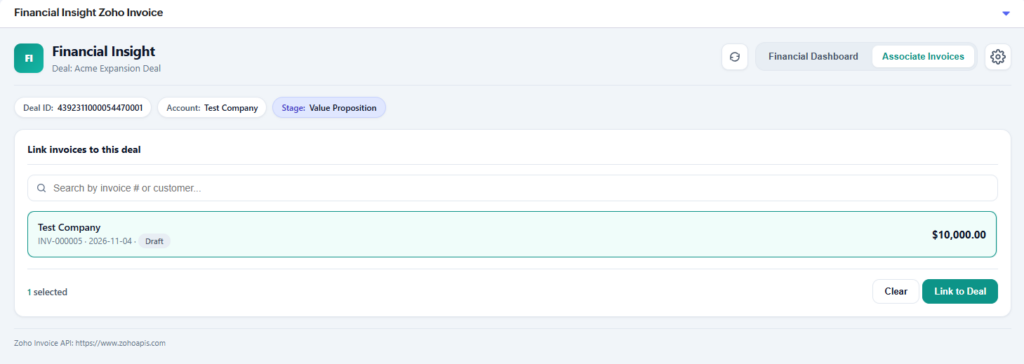
3. Track payments (Financial Dashboard tab)
- The top strip shows the Deal ID, contact or account, and stage.
- The cards show Deal Value, Total Invoiced, Total Paid and Outstanding.
- You can filter the linked invoices by all / paid / partial / unpaid / overdue and page through them with Previous / Next.
- Click Refresh if invoices changed in Books or CRM outside the widget.