Table of Contents
ClickSend SMS For Zoho CRM
- Frontend: React, React Bootstrap, Material-UI icons
- Backend: PHP that calls the ClickSend REST API
- Zoho: ZohoEmbededAppSDK for embedding in Zoho CRM
Prerequisites
- Zoho CRM Account: If you do not already have an account, please sign up using the link below.
- For USA Domain
- For EU Domain
- Clicksend Account: If you don’t have an account, Click Here to create one.
About this version
- Fully compatible with Leads, Contacts, Accounts, and Deals modules for unified attachment management.
- Works seamlessly in List View and individual record Detail View.
- Designed with a responsive UI to ensure smooth usability across devices and screen sizes.
Features
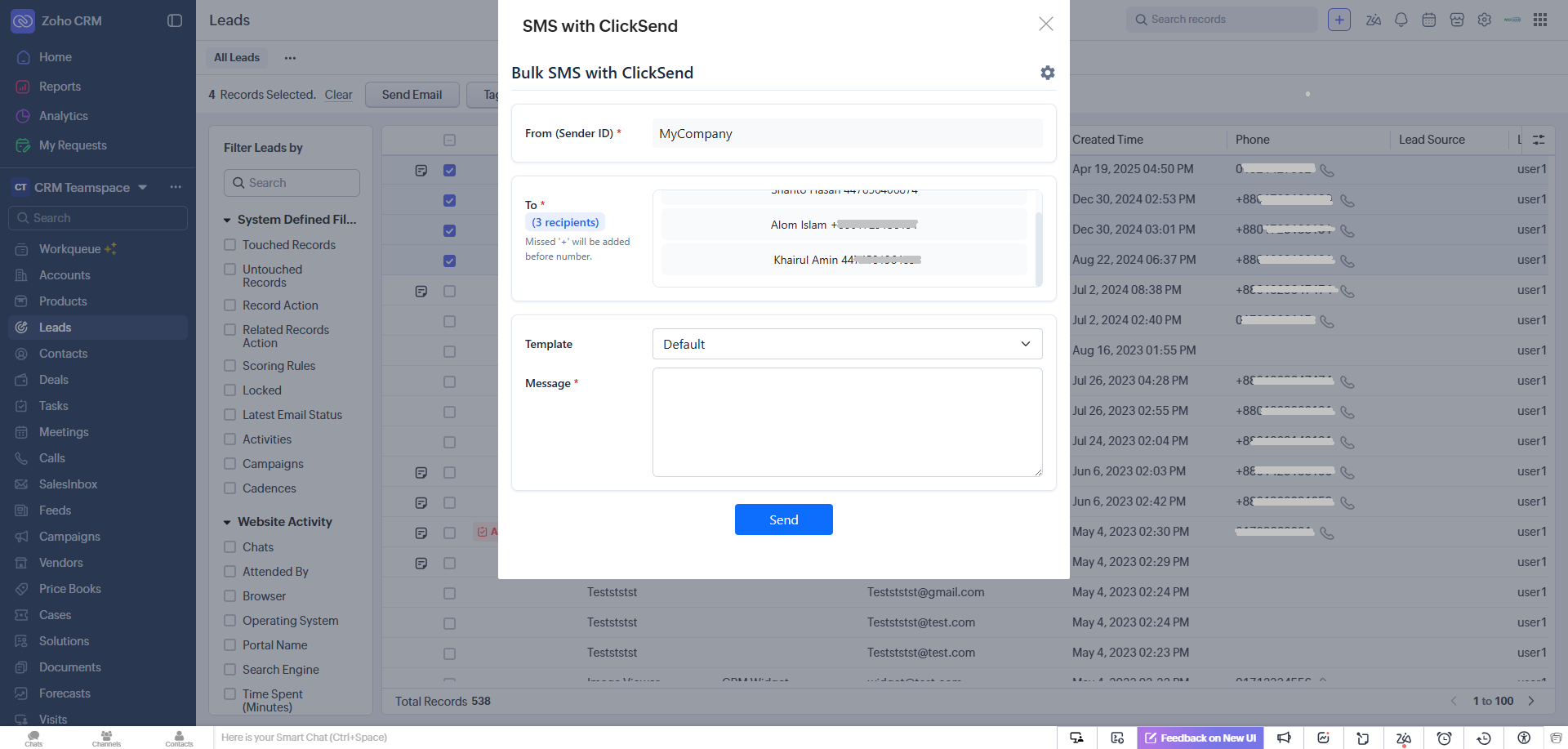
- Bulk SMS – Send to many recipients from Leads, Contacts, or Deals list/detail view.
- View modes – Works in both List View (with selections) and Detail View.
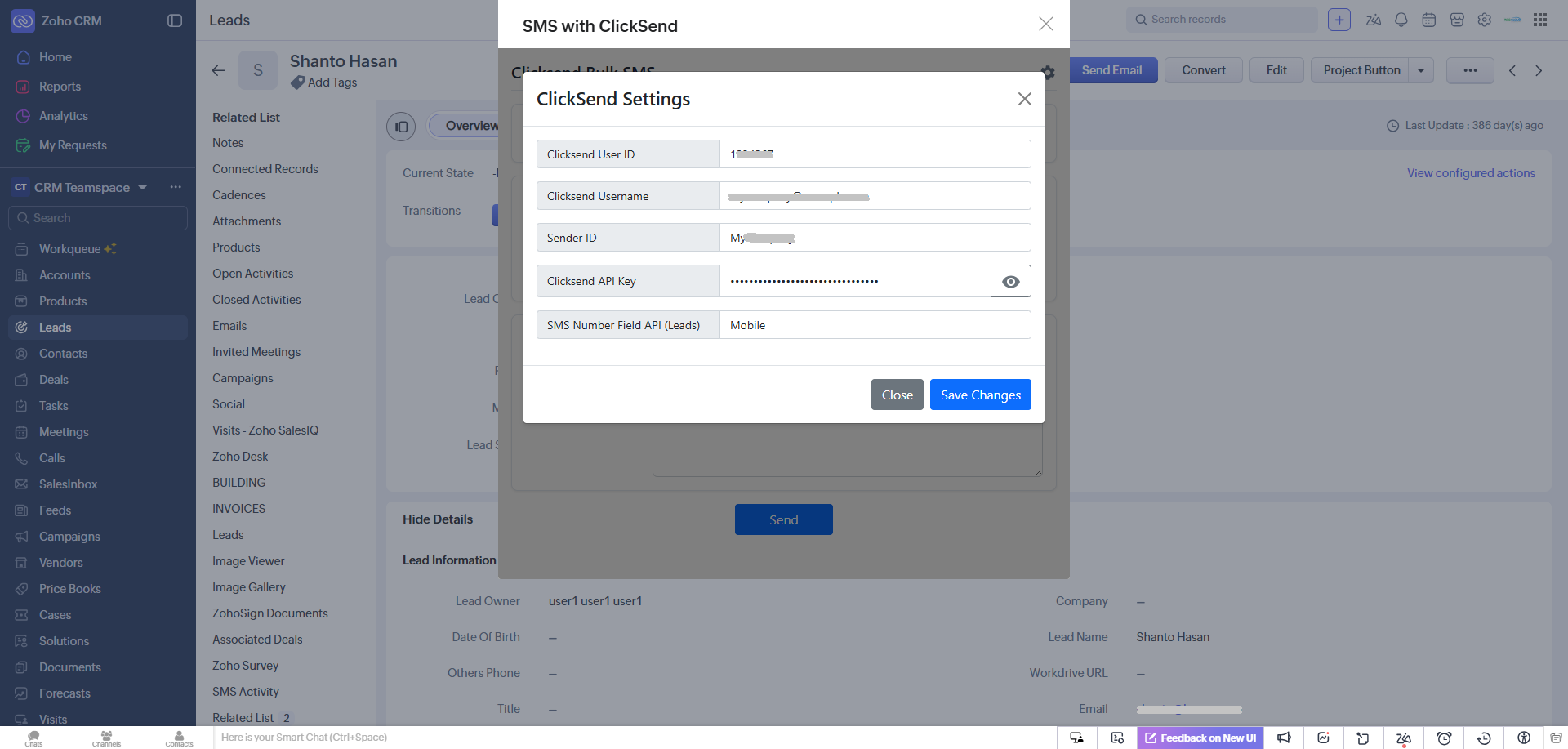
- ClickSend integration – Uses ClickSend User ID, Username, Sender ID, and API Key.
- Templates – Predefined templates from clicksendsmsforzohocrm2__ClickSend_SMS_Templates.
- Merge fields – Template placeholders like #First_Name, #Last_Name for personalization.
- Configurable phone fields – Choose which field holds the phone number per module (Leads, Contacts, Deals).
- SMS activity logging – Inserts records into Zoho Custom Module 2 (twiliosms16__*) for each sent SMS
- Settings modal – Store and update ClickSend credentials and phone field mapping.
Scopes
Frontend (Zoho): - Needs Zoho CRM scopes for:
- Read/update org variables
- Read Leads, Contacts, Deals
- Read custom module clicksendsmsforzohocrm2__ClickSend_SMS_Templates
- Insert into custom module CustomModule2 (SMS activity)
Backend (ClickSend): - ClickSend API (Basic Auth with username and API key)
Backend (optional): - Bitly API token for shortening URLs in queued messages
Help Video
How to Install
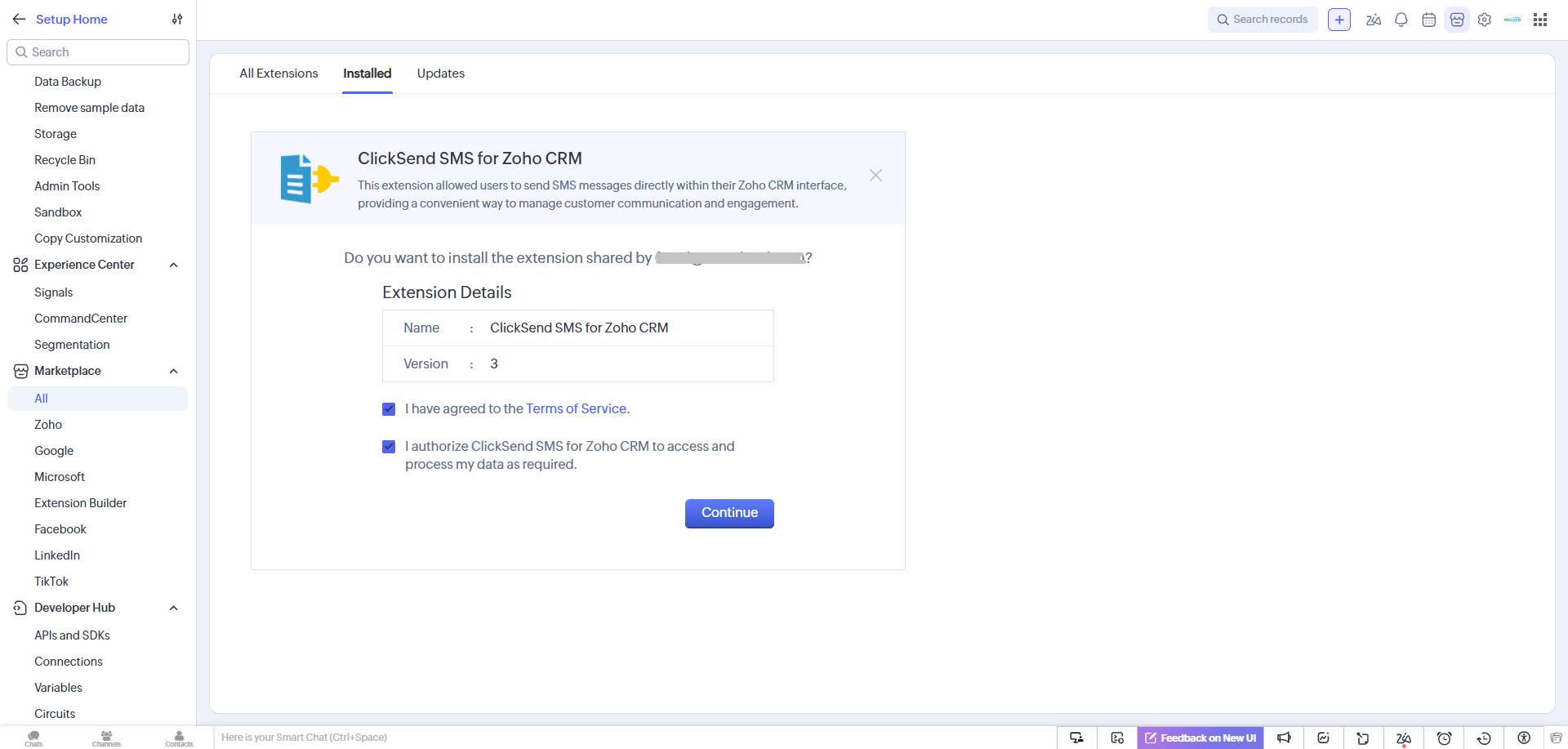
Agree to the terms and conditions, then click “Continue” button.
Now choose users/profiles and click on “Confirm” button.
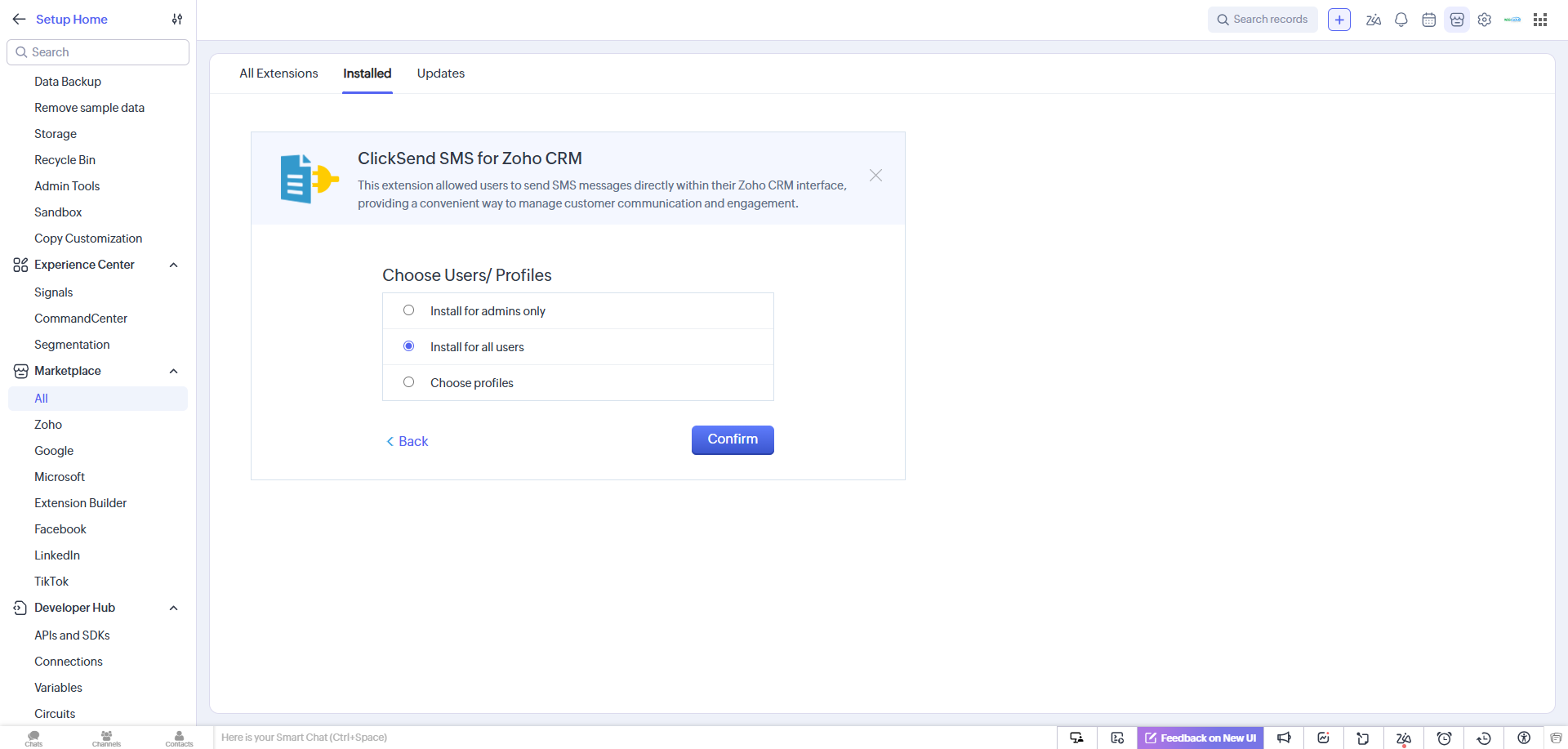
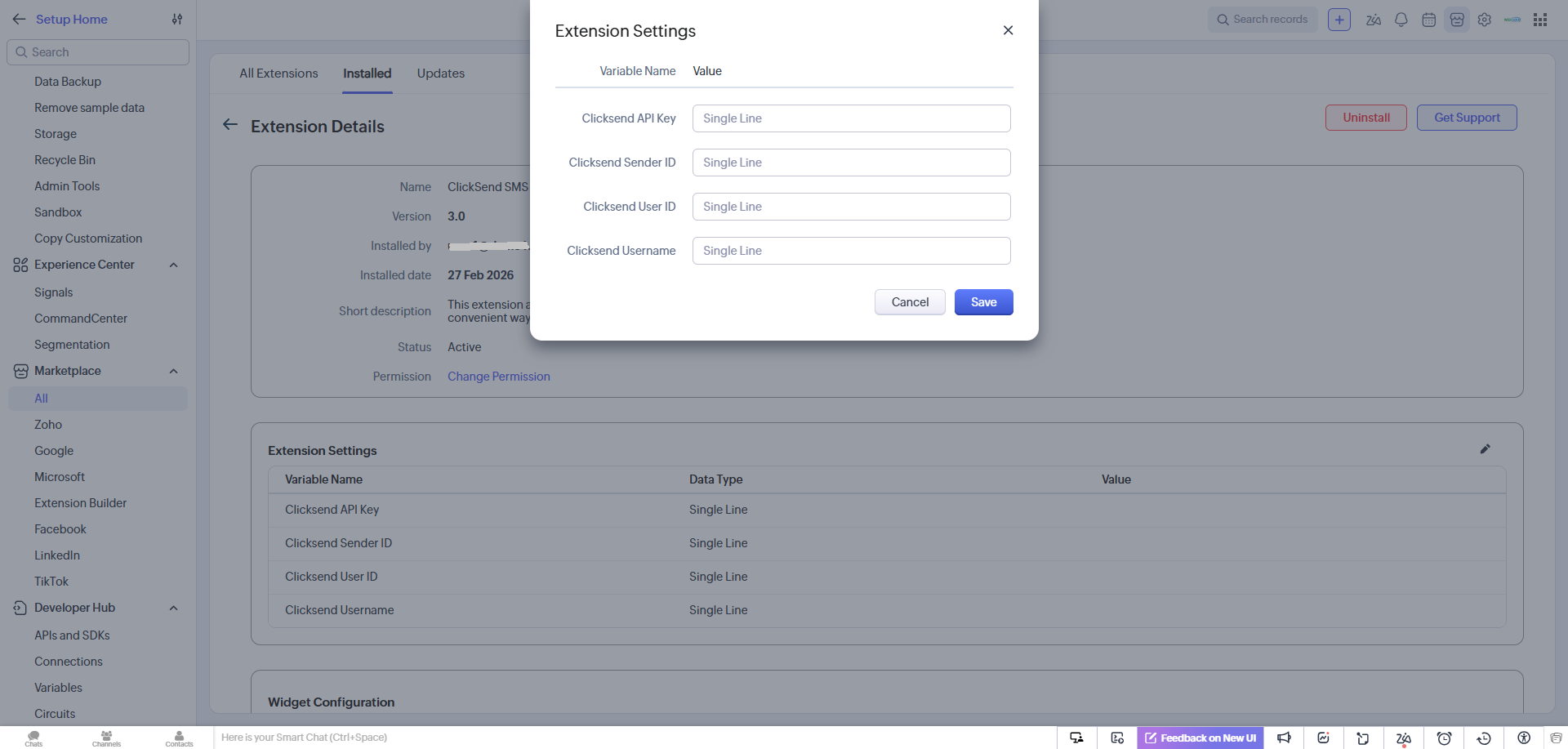
Installation is complete, and the extension details are now displayed. No additional configuration is required. You can now check the extension functions in the Leads, Contacts, Accounts, and Deals modules.
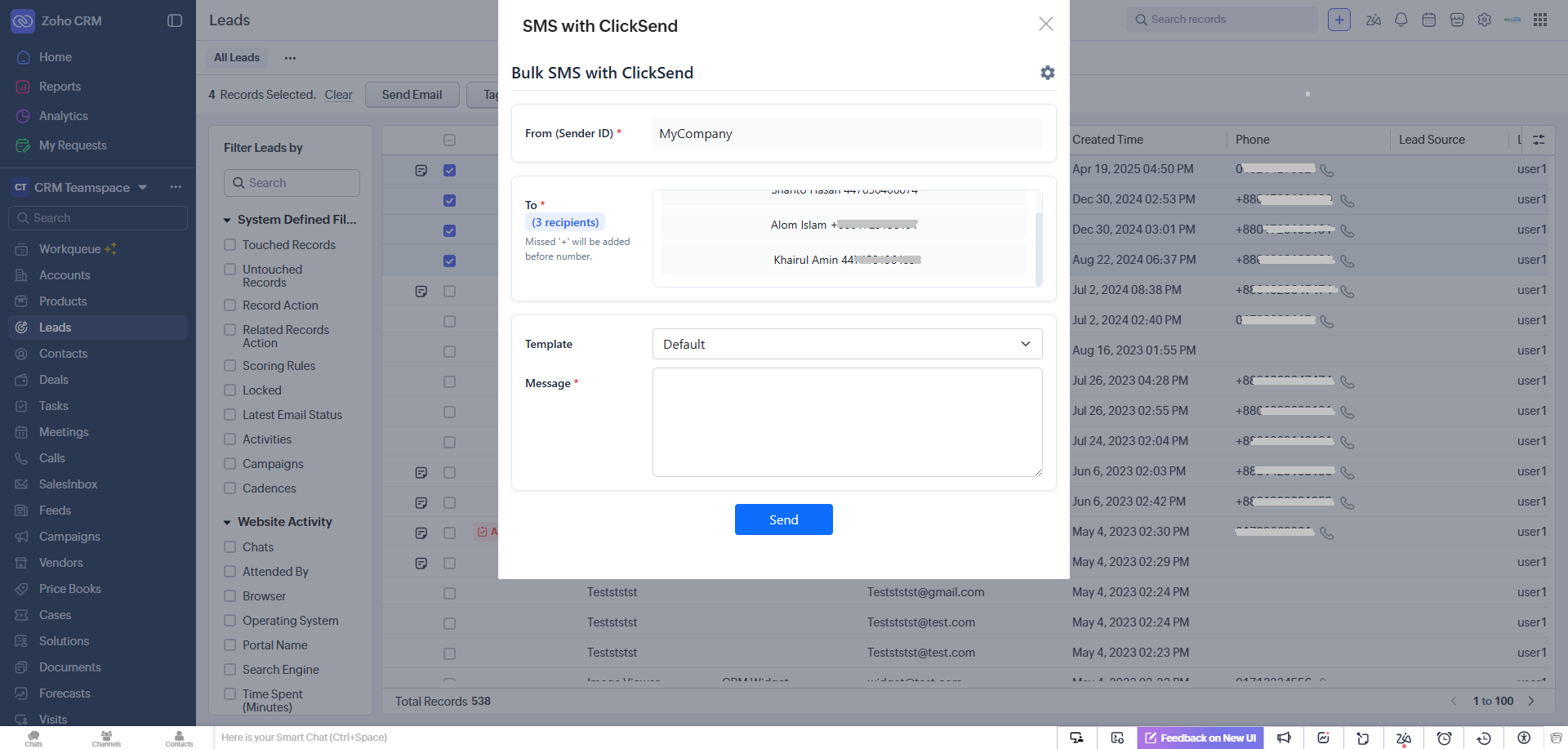
After installation, the extension is ready to use. Navigate to the modules — Leads, Contacts, Accounts, and Deals — and click the “SMS with ClickSend” button to access it.
How to use
After successfully installing the extension go to the module and find the button named after “SMS with ClickSend” from Mass Action Button in List view or record Detail page.
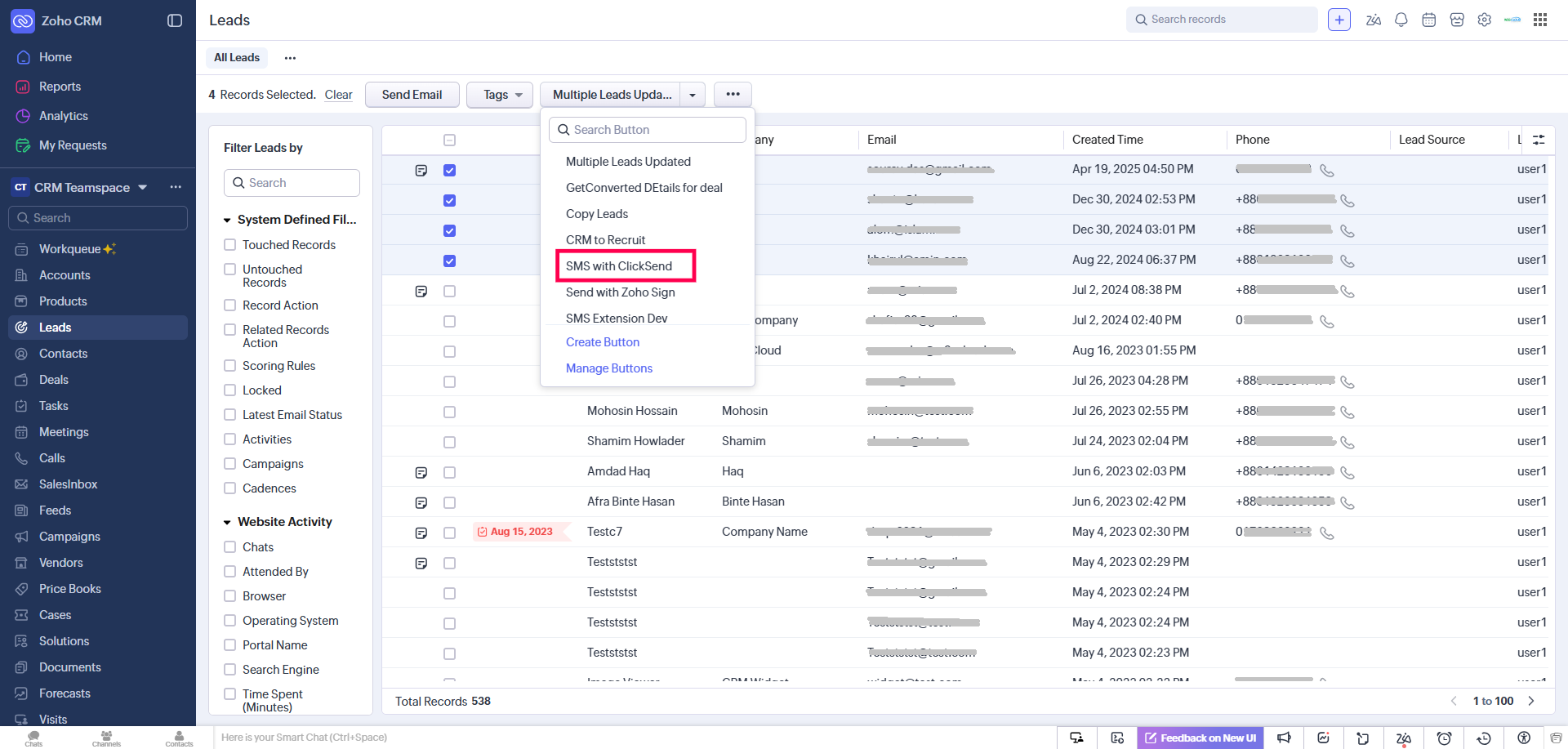
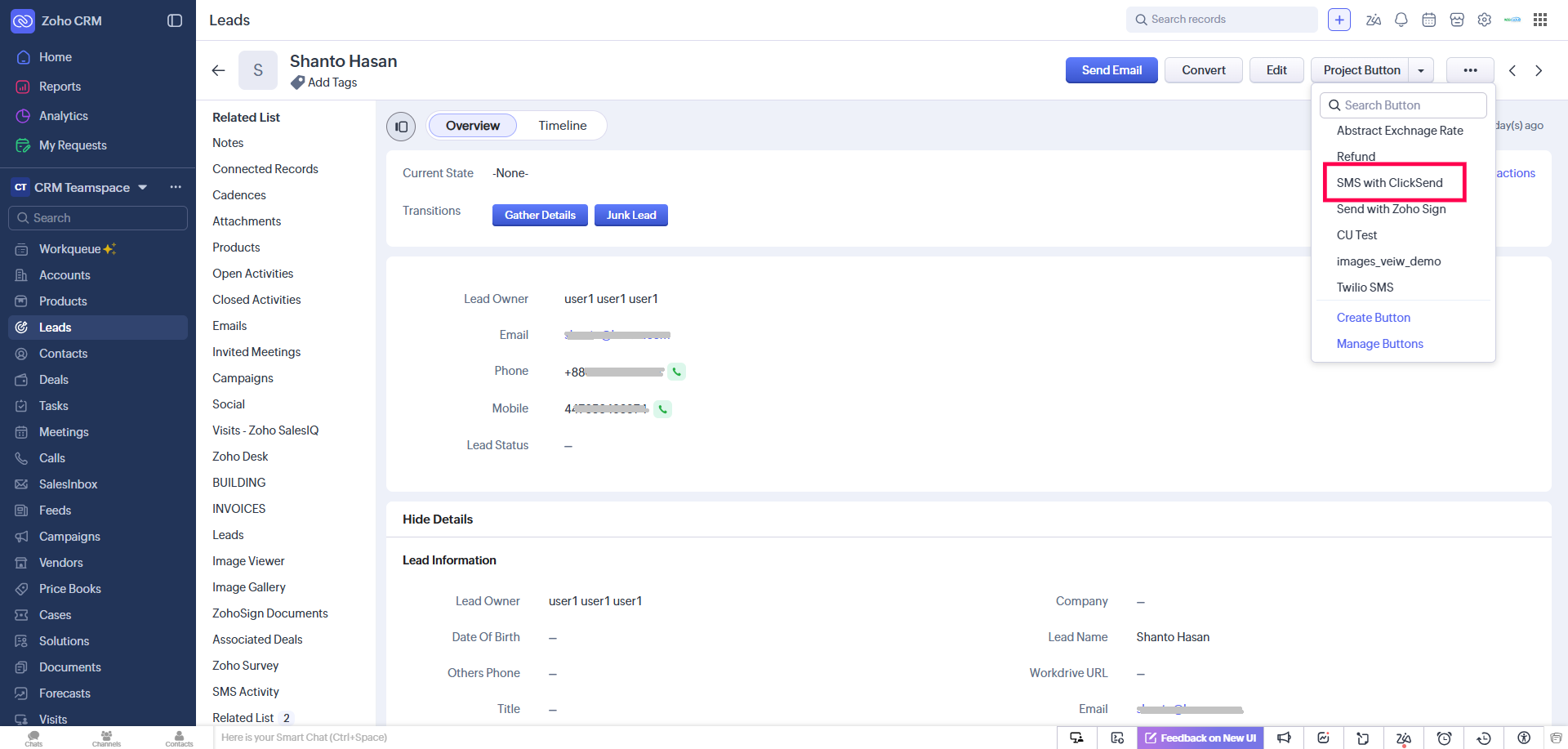
You will be required to provide the ClickSend details:
- Clicksend User ID
- Clicksend Username
- Sender ID (alpha tag or phone number)
- Clicksend API Key
If any data is missing provide it by clicking the “Settings” icon.
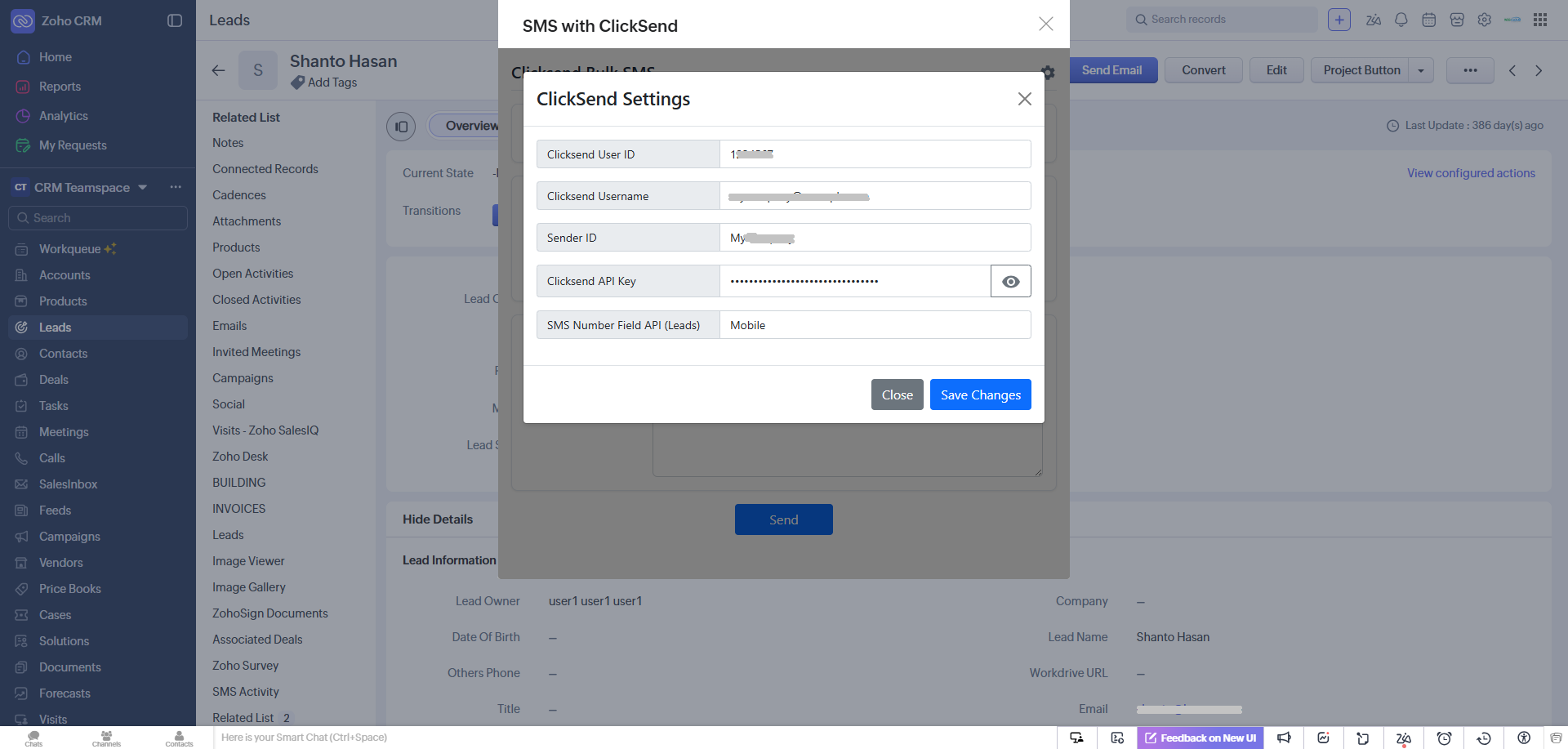
After providing all of the required ClickSend information, the extension will be ready to use. You can now send SMS by selecting predefined SMS Template or writing the messag — individually or in bulk — from both the List View (via the mass action button) and the Detail View.